- JavaScript 92.7%
- XSLT 4.3%
- Assembly 2.1%
- CSS 0.6%
- BASIC 0.1%
| Filename | Latest commit message | Latest commit date |
|---|---|---|
| apps | ||
| bin | ||
| blog | ||
| configs | ||
| devices | ||
| disks | ||
| docs | ||
| logs | ||
| my_modules | ||
| pubs | ||
| tests/pc | ||
| versions | ||
| .editorconfig | ||
| .gitignore | ||
| .jshintrc | ||
| Gruntfile.js | ||
| LICENSE | ||
| package.json | ||
| README.md | ||
| robots.txt | ||
| server.js | ||

The Original IBM PC in Your Browser
Welcome to pcjs.org and PCjs, the first IBM PC simulation to run in your web browser without any plugins. It was added to the JavaScript Machines project in Fall 2012. The project now includes:
- PCjs, a simulation of the original IBM PC (circa 1981)
- C1Pjs, a simulation of the OSI Challenger 1P (circa 1978)
All our simulations are written entirely in JavaScript. No Flash, Java or other plugins are required. Supported browsers include recent versions of Internet Explorer (v9.0 or later), Safari, Chrome, Firefox and various mobile browsers.
The simulation above features an Intel 8088 running at 4.77Mhz, with 64Kb of RAM and an IBM Monochrome Display Adapter. For more control, there are also Control Panel and Soft Keyboard configurations, featuring the built-in PCjs Debugger. For even greater control, build your own PC. The PCjs Documentation will help you get started.
The goals of the JavaScript Machines project are to create fast, full-featured simulations of classic computer hardware, help people understand how these early machines worked, make it easy to experiment with different machine configurations, and provide a platform for running and analyzing old computer software.
Demos
Some pre-configured machines are shown below, ready to run BASIC, DOS, Windows 1.01, and assorted non-DOS software.
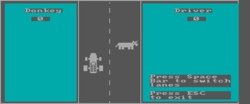

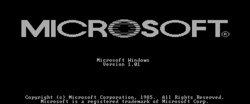
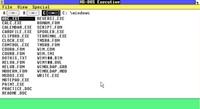
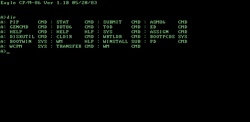
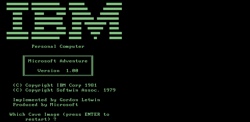
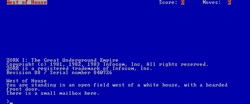
Check out the rest of the PCjs Application, Boot Disk and Machine demos, including the IBM PC XT "Server Array" and Windows 1.01 "Server Array" demos of multiple PCs running side-by-side.
C1Pjs
Below is the OSI Challenger C1P, another simulation in the JavaScript Machines project. It simulates Ohio Scientific's 6502-based microcomputer, released in 1978. More details about this simulation and the original machine are available in the C1Pjs Documentation.
Updating PCjs
Developing
Let's say you just finished developing, testing and deploying version 1.12.1, and you want to start developing some new features for version 1.13.0. Here are the recommended steps:
- Create and switch to a new Git development branch (eg, "node_dev")
- Change the version number in package.json (eg, to "1.13.0")
- Run "grunt" (the default task will build fresh "1.13.0" copies of everything under "/versions")
- Run "grunt promote" to bump the version in all the site's machine XML files to match (ie, to "1.13.0")
You may not want to do the last step until you're ready to start testing the new version. In fact, you may want to manually edit the version in only a few machine configuration files for testing, leaving the rest set to the previous version to make comparison runs easier, and then run "grunt promote" when the new version is much closer to being released.
Commit the development branch to GitHub as often as desired. I probably tend to "over-commit", checking in lots of intermediate changes before I finally decide that the new version is "good enough". But having too much delta history is probably better than too little. Note that the initial "node_dev" commit may not get pushed to GituHub without first running:
git push --set-upstream origin node_dev
One downside to intermediate commits to GitHub is that compiled versions of the sources (such as those in /docs/pcjs/demos/) may keep changing, and those particular commits are pretty useless. To temporarily ignore changes to those files:
cd docs/pcjs/demos
git update-index --assume-unchanged components.xsl pc.js pc-dbg.js samples.zip
To see a list of all files that are marked as "assume-unchanged", use this command:
git ls-files -v | grep '^[[:lower:]]'
The same issue would exist for all new files created under "/versions", but fortunately, those files are ignored until you explicitly add them to Git, which you'll want to do just prior to deployment:
git add versions/pcjs/1.13.0/*
git add versions/c1pjs/1.13.0/*
which is when you'll also want to do undo the "assume-unchanged" operation above:
cd docs/pcjs/demos
git update-index --no-assume-unchanged components.xsl pc.js pc-dbg.js samples.zip
Testing
PCjs can now be run from the command-line mode using Node, making it possible to script the application, run a series of automated tests, etc:
cd ./my_modules/pcjs-client/bin
node pcjs
The pcjs script in the bin directory loads all the PCjs browser scripts listed in package.json, and then it starts a Node REPL ("read-eval-print loop"). The REPL handles a few special commands (eg, "load", "quit") and passes anything else to the PCjs Debugger component. If no Debugger component has been created yet, or if the Debugger didn't recognize the command, then it's passed on to eval(), like a good little REPL.
Use the "load" command to load a JSON machine configuration file. A sample machine.json is provided in the bin directory, which is a "JSON-ified" version of the machine.xml displayed on the pcjs.org home page.
The command-line loader creates all the JSON-defined machine components in the same order that the browser creates XML-defined components. You can also issue the "load" command directly from the command-line:
node pcjs --cmd="load machine.json"
In fact, any number of "--cmd" arguments can be included on the command-line. A batch file syntax will eventually be added, too.
When PCjs runs in a browser, an XML machine configuration file is transformed into HTML with a set of DIVs for each component: an "object" DIV whose data-value attribute provides the initialization parameters for the corresponding component, along with a set of optional "control" DIVs that the component can bind to (eg, a "Run" button, or a visual representation of DIP switches, or whatever).
When PCjs is run from the command-line, there is no XML, HTML, or DIVs involved; this is basically a "headless" version of PCjs, so there is no simple way to view a machine's video display or interact with its keyboard, mouse, etc. You have to use Debugger commands to dump the machine's video buffer.
Since I was not inclined to add XML support to my Node environment, this has created some divergence between client and server operation: PCjs on the client supports only XML machine configuration files, whereas PCjs on the server supports only JSON machine configuration files.
I haven't decided whether I'll add support for JSON configuration files to the client, or add some XML-to-JSON conversion to the server, or both.
Deploying
I like to use the AWS Elastic Beanstalk web interface to create a new "development" environment ("pcjs-dev") for testing:
- Save the current production environment ("pcjs-env") as configuration "pcjs-config"
- Create a new environment ("pcjs-dev") using the "pcjs-config" configuration
- Wait for the new environment ("pcjs-dev") to start (ie, for its health to become "Green")
- From Terminal, go to the
~/Sites/pcjsfolder and runeb branchfollowed bygit aws.push
The eb branch command will display:
The current branch is "node_dev".
Enter an AWS Elastic Beanstalk environment name (auto-generated value is "pcjs-nodedev-env"): pcjs-dev
Do you want to copy the settings from environment "pcjs-env" for the new branch? [y/n]: y
after which we're ready for git aws.push to the new "pcjs-dev" environment.
See the "Develop, Test, and Deploy" AWS documentation for more details.
On a local machine, the process is similar. If this is a "virgin" machine, you must first install Node and NPM; see my notes on "Installing Node (and NPM)" for more details.
Then install and run the PCjs web server files:
[iMac:~/Sites] git clone git@github.com:jeffpar/jsmachines.git pcjs
[iMac:~/Sites] cd pcjs
[iMac:~/Sites/pcjs] git checkout node_dev
[iMac:~/Sites/pcjs] npm install --production
[iMac:~/Sites/pcjs] export PORT=8086 (this is optional)
[iMac:~/Sites/pcjs] node server.js
For a machine that is simply out-of-date, you can do something like this:
[iMac:~/Sites/pcjs] git pull
[iMac:~/Sites/pcjs] npm update --production
[iMac:~/Sites/pcjs] export PORT=8086 (this is optional)
[iMac:~/Sites/pcjs] node server.js
In the second scenario, there may be stale "index.html" files that prevent you from seeing the latest versions of everything, so before running Node, you may want to do this first:
[iMac:~/Sites/pcjs] touch my_modules/shared/templates/common.html
The HTMLOut module compares the timestamp of that template file to the timestamp of any "index.html" and will regenerate the latter if it's out-of-date. There's a TODO to expand that check to include the timestamp of any local README.md file, but there are many other factors that contribute to stale "index.html" files, so the safest thing to do is touch the common.html template, or delete all existing "index.html" files -- either by hand, or by using:
[iMac:~/Sites/pcjs] grunt clean
However, if you included "--production" in your NPM install/update commands, you won't have the necessary grunt task files. You may not even have grunt itself installed, unless you've previously run:
[iMac:~/Sites/pcjs] sudo npm install grunt-cli -g
Stale "index.html" files may be a non-issue on AWS, because it appears to create a completely new directory
structure when it rebuilds the environment following a git aws.push -- but I'm not sure that's always true.
More Information
Learn more about the JavaScript Machines project and PCjs. To create your own PCjs machines, see the Documentation for details.
If you have questions or run into any problems, you're welcome to tweet or email.